
Getting Started with iPtvie
New to IPTV? From ordering to watching your favourite channels, in three steps.
Welcome! This guide is for anyone who has never used IPTV before. We take it step by step, from ordering to sitting on your sofa watching your favourite channels.
What is IPTV?
IPTV means watching TV over the internet instead of through an aerial, a satellite dish or cable. In everyday use you won't notice the difference: you open an app, log in and start watching.
With iPtvie you get live TV channels from around the world, sport, and a large library of films and series, on your TV, computer, phone or tablet.
Step 1: Order a subscription
- Go to our packages and pick how long: 1, 6 or 12 months. Longer is cheaper per month.
- Under Device, choose App for a TV, phone, computer or tablet. Choose MAG box only if you have a MAG box.
- Fill in your email address and name, and pay with PayPal.

Your login details arrive by email within minutes, and they are always in My iPtvie too. Nothing renews by itself: you pay once for the period you chose.
Step 2: Download an IPTV app
To watch you need an app. Think of the app as an empty player: it has no content of its own. iPtvie delivers the channels, films and series once you log in.
| Device | Our pick | Guide |
|---|---|---|
| Samsung TV | BobPlayer or 9Xtream 4K Player | BobPlayer |
| LG TV | IBO Player or 9Xtream 4K Player | IBO Player |
| Android TV, Google TV, Nvidia Shield | TiviMate | Android TV |
| Fire TV Stick | TiviMate | Fire TV Stick |
| Apple TV, iPhone, iPad | UHF | UHF |
| Android phone or tablet | MYTVOnline+ | Android Mobile |
| Windows | 9Xtream 4K Player | Computer |
| Mac | IBO Player | Computer |
| MAG box | Built in | MAG box |
Exclusive for iPtvie customers
9Xtream 4K Player runs on Samsung, LG, Android TV, Fire TV, iPhone, Roku and Windows. Try it for 7 days, then send us the app's MAC address and device key and we activate it for life, at no cost.
Step 3: Log in with your details
Open My iPtvie and tap Login details on your subscription.

In the app, always choose Xtream Codes when it asks how to add a playlist, and fill in:
| Field in the app | What to enter |
|---|---|
| Playlist name | Anything you like, for example iPtvie |
| Server / URL / Host | The server address from Login details |
| Username | Your username |
| Password | Your password |
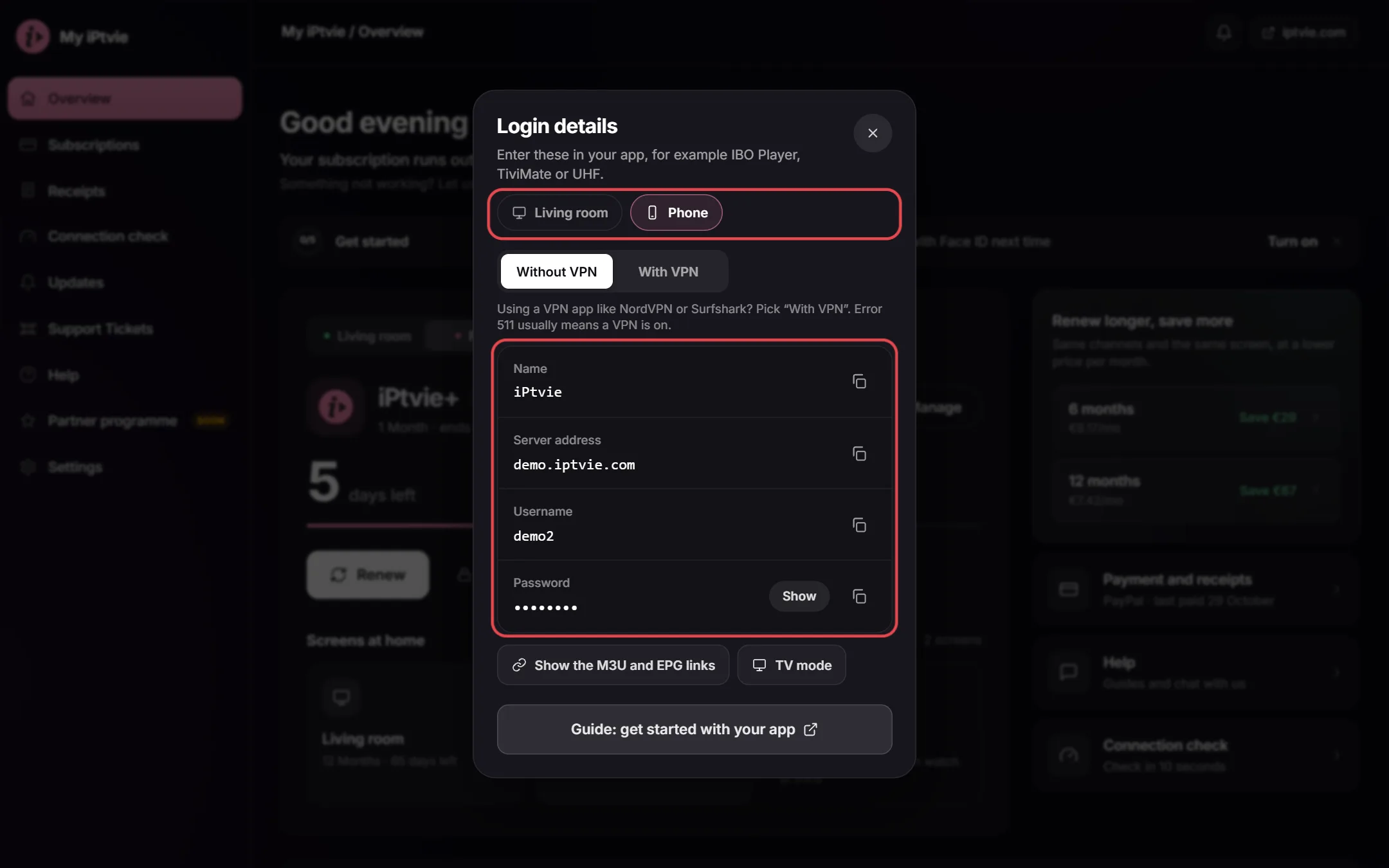
Press Log in, Add or Connect, depending on the app. After a few seconds your channels, films and series load.
Using a VPN?
Pick With VPN at the top of Login details before you copy the server address. More about the VPN connection.
Frequently asked questions
How fast does my internet need to be?
About 20 Mbit/s for Full HD and 50 Mbit/s for 4K, per screen. More in What internet speed do I need?.
Do I get all content straight away?
Yes. As soon as you log in to the app, the whole service is there. No extra steps.
Can I watch on several devices at the same time?
You can install iPtvie on as many devices as you like, but each screen streams on one device at a time. To watch on two screens at once, add a screen in My iPtvie: it gets its own login.
How do I get subtitles or another audio language?
I can't find the email
Check your spam folder. Your details are also always in My iPtvie under Login details, see Find your login credentials.
Need help?
Can't find the answer? Write to us in the chat in My iPtvie, or use the chat button on this site. We help you get started.