
How do I watch IPTV on Android TV, Google TV or Chromecast?
Install TiviMate from Google Play and add your account with Xtream Codes. It works on every Android TV and Google TV device.
Install the TiviMate IPTV Player app from Google Play and add your account with Xtream Codes. It works on every device with Android TV or Google TV, and you are up and running in a few minutes.
Which devices does this apply to?
| Device | Works with TiviMate |
|---|---|
| Chromecast with Google TV and Google TV Streamer | Yes |
| Nvidia Shield | Yes |
| TVs from Philips, Sony and TCL with Google TV or Android TV | Yes |
| Other boxes and sticks with Android TV or Google TV | Yes |
| Older Chromecast without a remote | No, see below |
| Fire TV Stick | Yes, but the app is installed differently. See Fire TV Stick |
Older Chromecast without Google TV
A Chromecast without a remote and a home screen of its own can't install apps. It only shows what you send from your phone, and that works poorly with IPTV. Use a device where the app is installed directly, such as a Chromecast with Google TV.
What you need
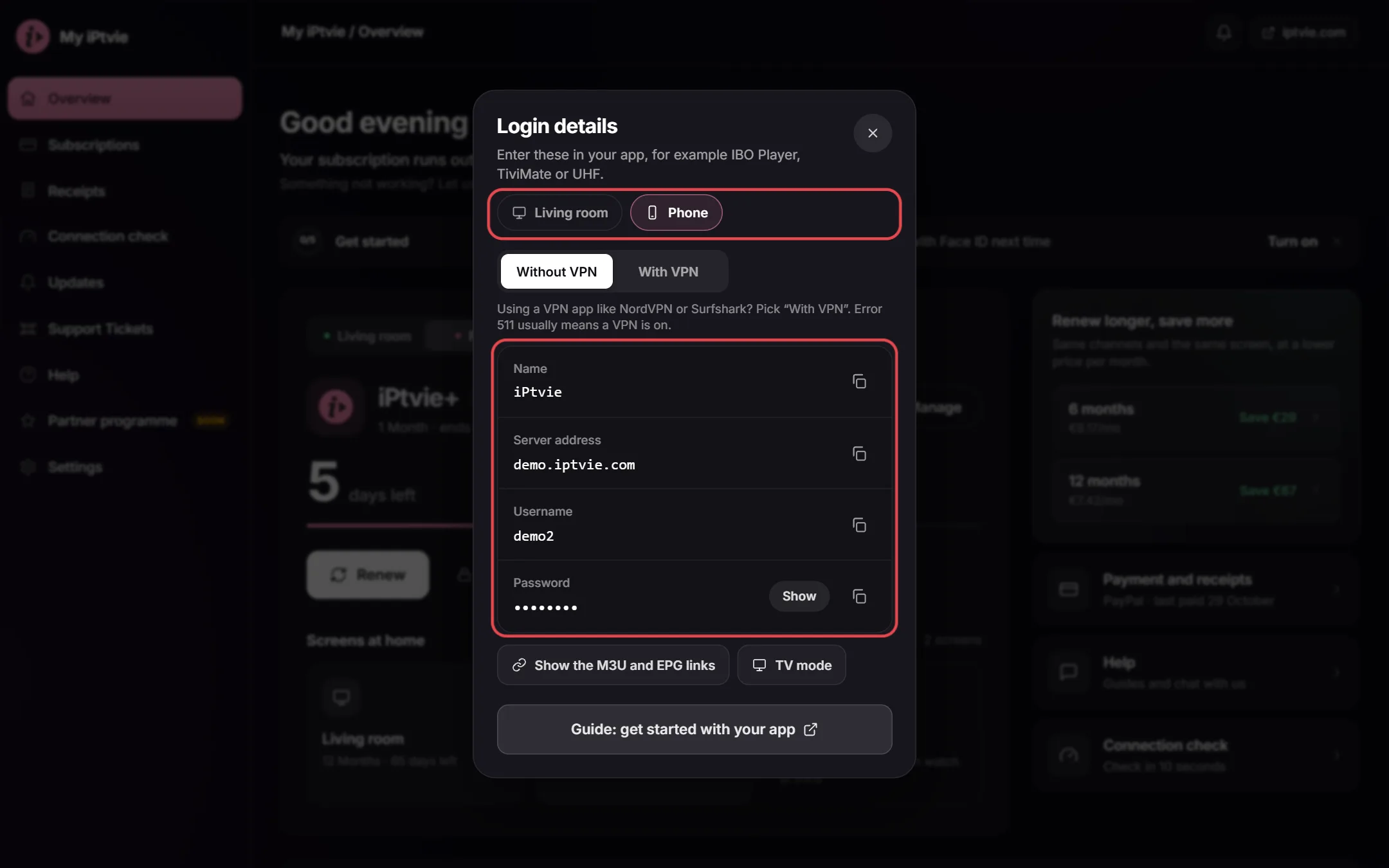
Your details are in My iPtvie under Login details: a server address, a username and a password. Tap a row to copy it, so you don't have to type it. Have several screens? Pick the right one at the top first.
Step 1: Install TiviMate
- Open Google Play on the device.
- Search for TiviMate IPTV Player and install the app.
Step 2: Add your account
- Open TiviMate and select Add playlist.
- Select Xtream Codes, not M3U.
- Fill in the server address, username and password, exactly as written in My iPtvie.
- Continue with Next. Channels, programme guide, films and series load.
Using a VPN?
Then switch to With VPN at the top of Login details before you copy the server address. The username and password stay the same. More about the VPN connection.
Step 3: Check the stream format
Go to Settings → Playlists → select the playlist → Xtream Codes parameters and set the format to MPEG-TS. If live channels don't start while films and series work, this is almost always the fix.
Everything about settings, favourites, the programme guide and parental controls is in the TiviMate guide.
Exclusive for iPtvie customers: 9Xtream 4K Player for life
9Xtream 4K Player also runs on Android TV and Google TV. Try it free for 7 days, then send us the app's MAC address and device key and we activate it for life, at no cost. See how it works.
Frequently asked questions
Does TiviMate cost anything?
TiviMate has a free version and a paid Premium. Films and series need Premium, and so do recording, several playlists and catch-up. You buy Premium in the app through Google Play, or at tivimate.com. The fee goes to TiviMate and has nothing to do with your iPtvie subscription.
Are there other apps for Android TV?
Yes. 9Xtream 4K Player is activated for life for free for iPtvie customers, and XCIPTV and Opus IPTV also work. See Other apps.
I have a Formuler box
Formuler has its own app, MYTVOnline. Follow the Formuler guide instead.
Which app should I use on my Android phone?
TiviMate is made for TVs. On phones and tablets we recommend MYTVOnline+ or Opus IPTV, see App for Android Mobile.
The live channels won't start, but films and series work
Change the stream format to MPEG-TS as in step 3 and press Update playlist.
Can I send the picture from my phone to the TV instead?
That rarely works well with IPTV. Install the app directly on the device connected to the TV for the best result.
Summary
- Install TiviMate IPTV Player from Google Play
- Add your account with Xtream Codes and the stream format MPEG-TS
- An older Chromecast without Google TV can't install apps
- Films and series need TiviMate Premium, which is the app's own fee